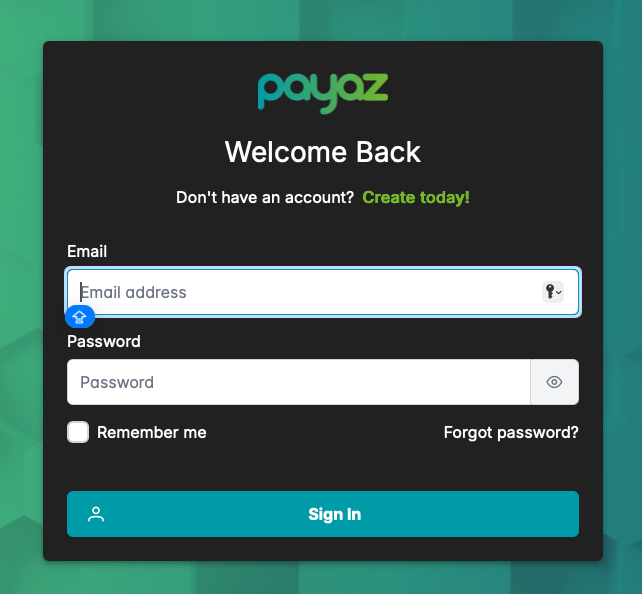
Step 1: When you account has been verified you can access you account by logging on at https://app.payaz.software/signinusing the registered email address and password.
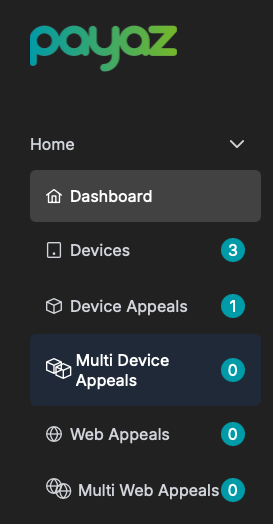
Step 2: Navigate to the multi device appeals section in the left hand side in the navigation bar
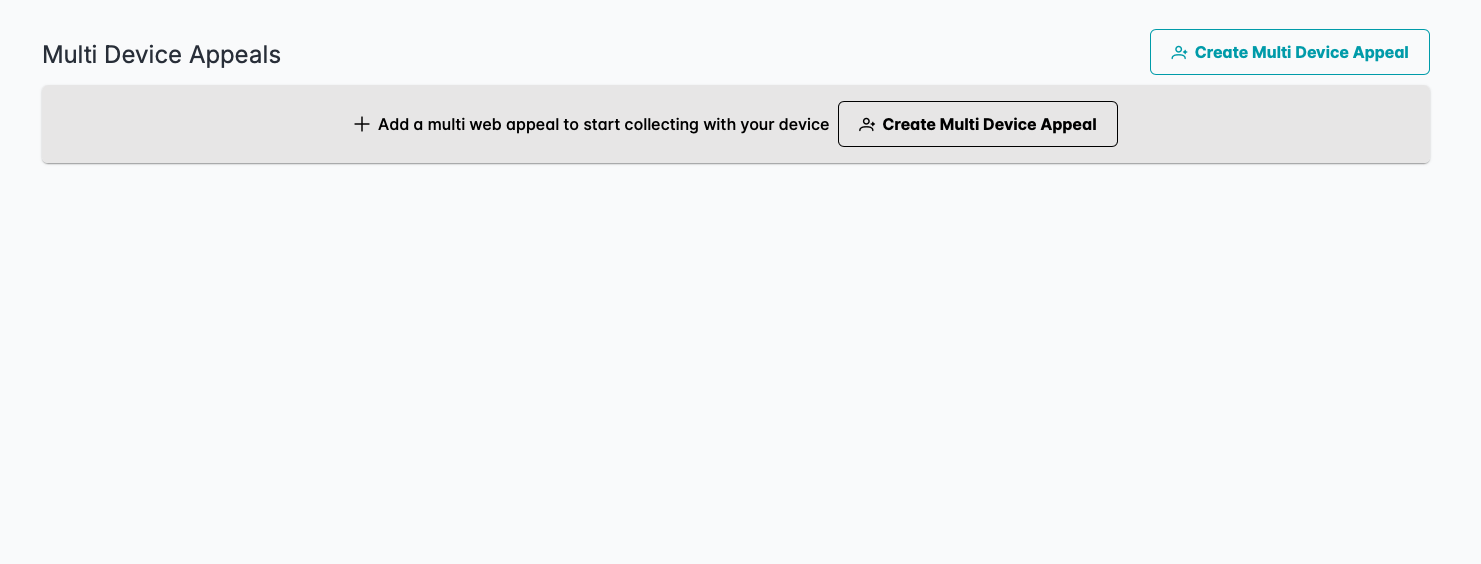
Step 3: When you see this page if you go ahead and click on "Create Multi Device Appeal" It will take you to the editor where you can begin to customise this page
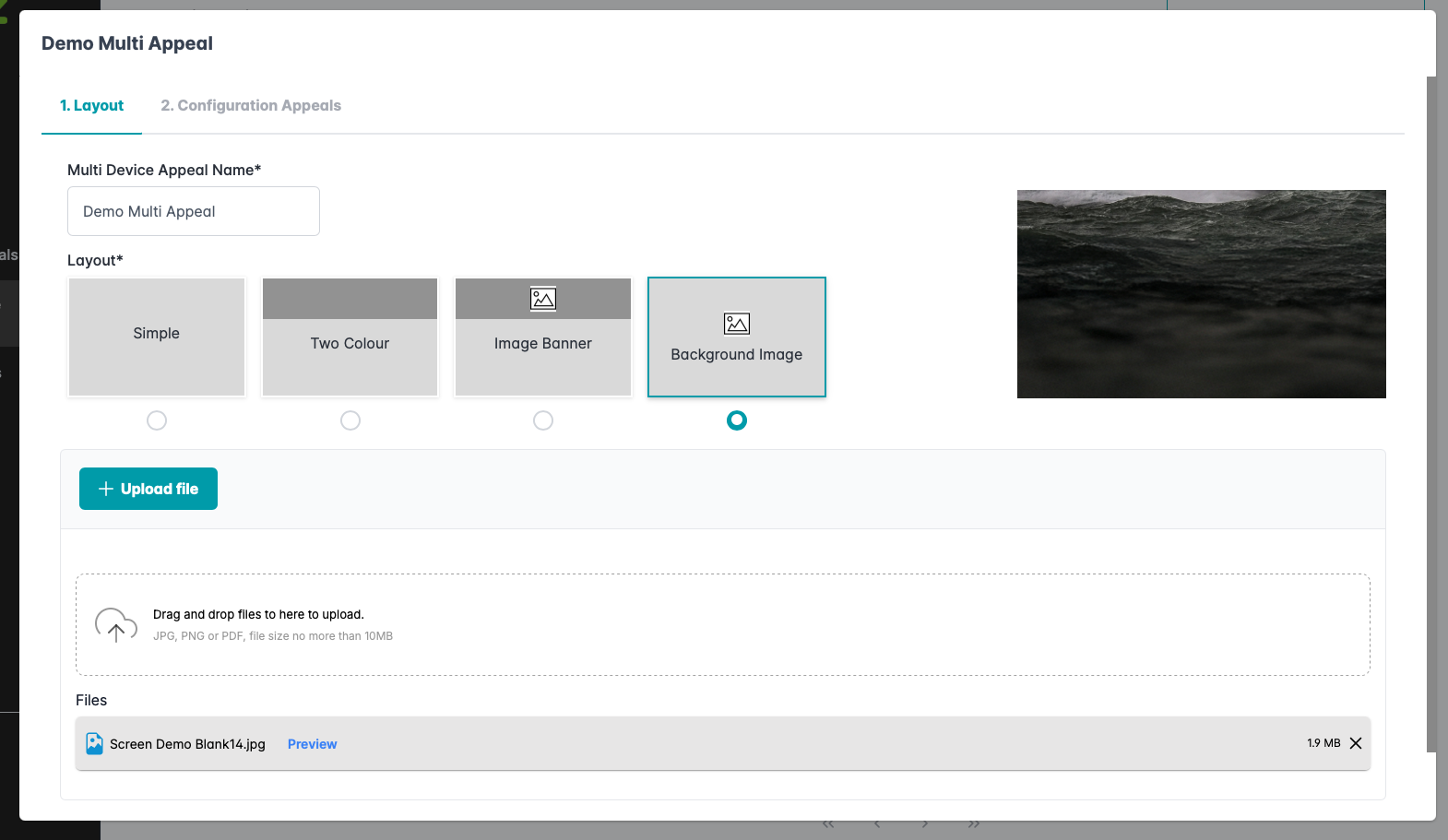
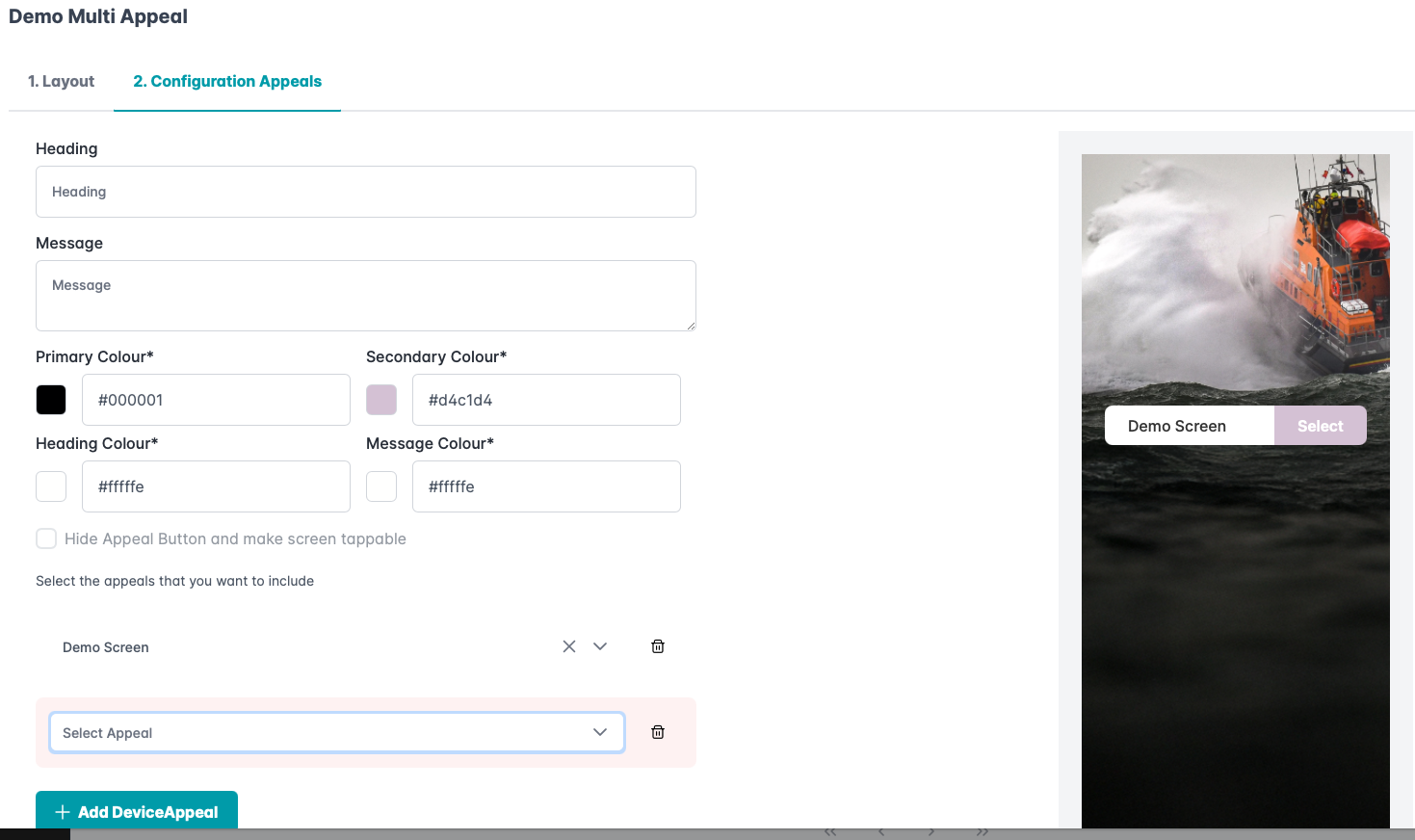
Step 4: From here if you just following the onscreen instructions for editing the page that will be visible to your users that will give them each of the different appeals to choose from. When you have finished doing this just scroll down and press the button labeled next.
Step 5: The next page is where you will select which appeals you want to appear on this page (the appeals must be created in advance) To select which appeals you want to add to the page click the big blue button that is labeled "Add Device Appeal" and then select from the drop down which appeal you want. When you have finished just click the button labeled "Save"
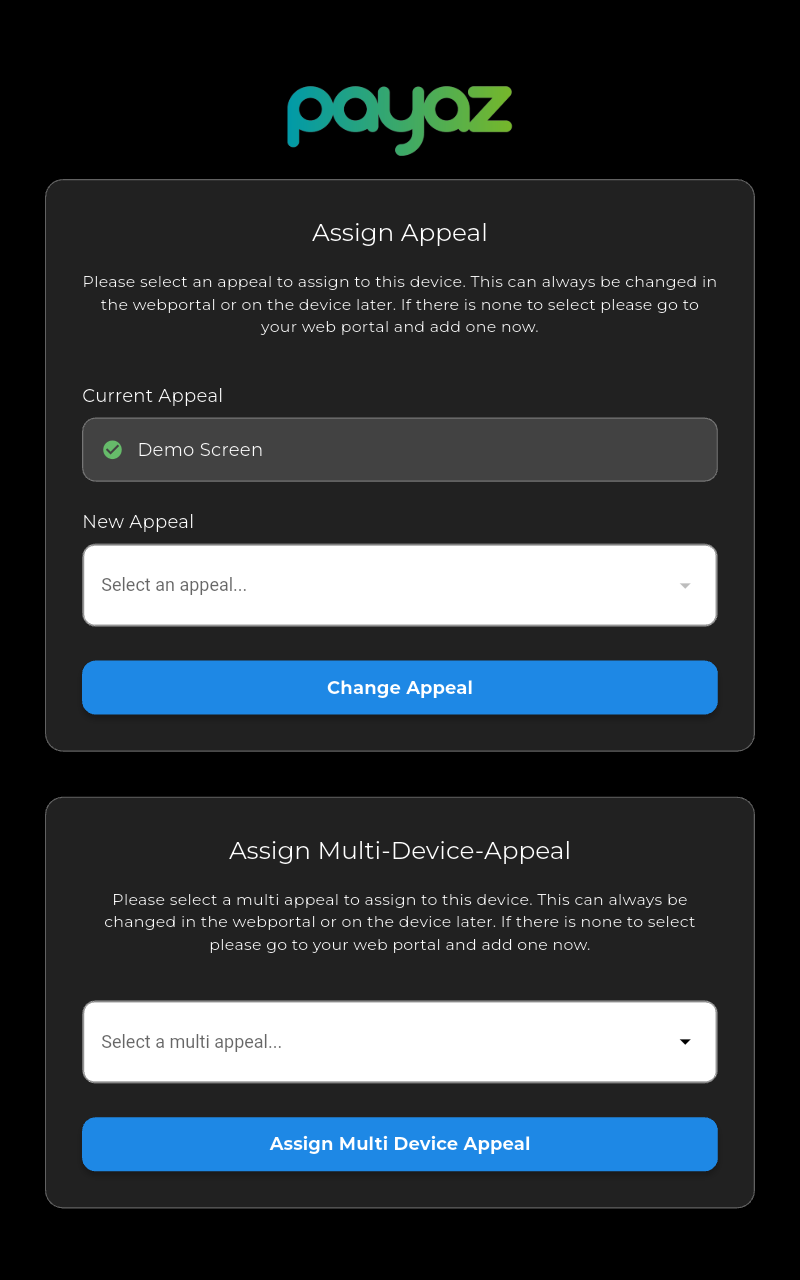
Step 6: When assigning an appeal to your device just select the nae of the multi appeal from the drop down menu in the "Assign Multi-Device Appeal" section.
Was this article helpful?
That’s Great!
Thank you for your feedback
Sorry! We couldn't be helpful
Thank you for your feedback
Feedback sent
We appreciate your effort and will try to fix the article