Step 1: Go to the following link: https://app.payaz.software/signup
Step 2:Complete the registration form entering First and Last Name, Email address and by choosing and confirming a password (At Least 8 Characters, 1 Upper Case, 1 Number and a special character for security purposes)
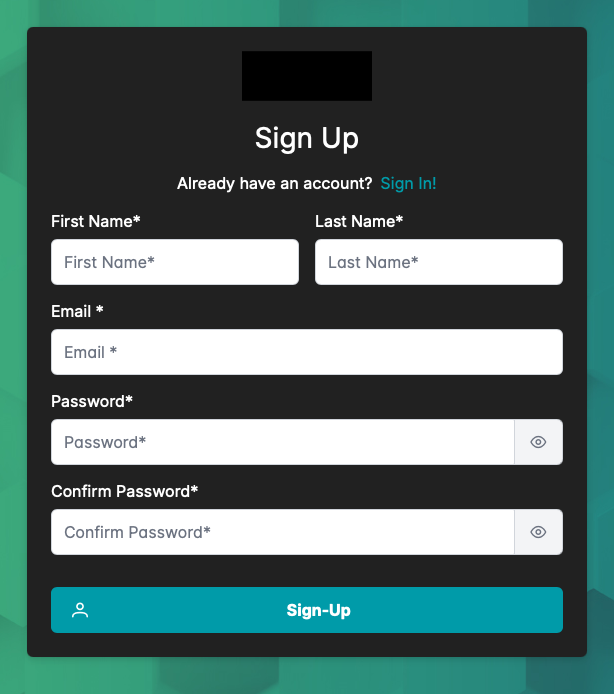
Step 3: Consenting to the Data Privacy and User Agreement.

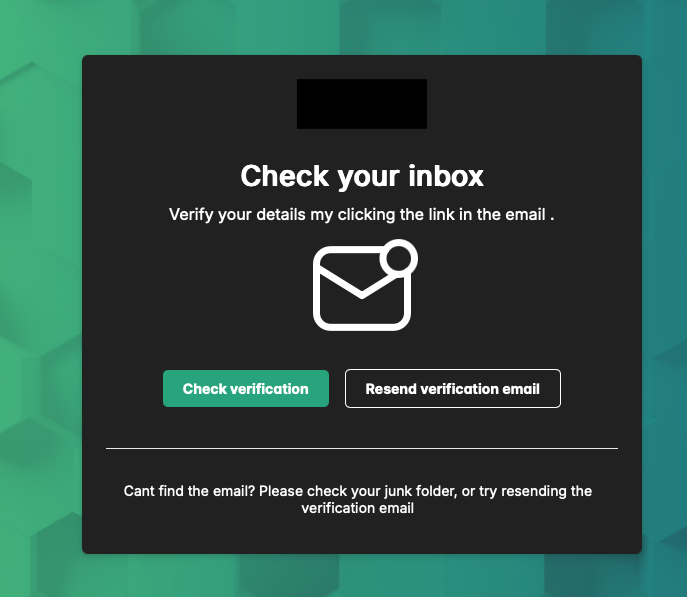
Step 4: Verify account registration via link sent to email that was used at sign up (If you can't find the email in your inbox check the junk or spam box)
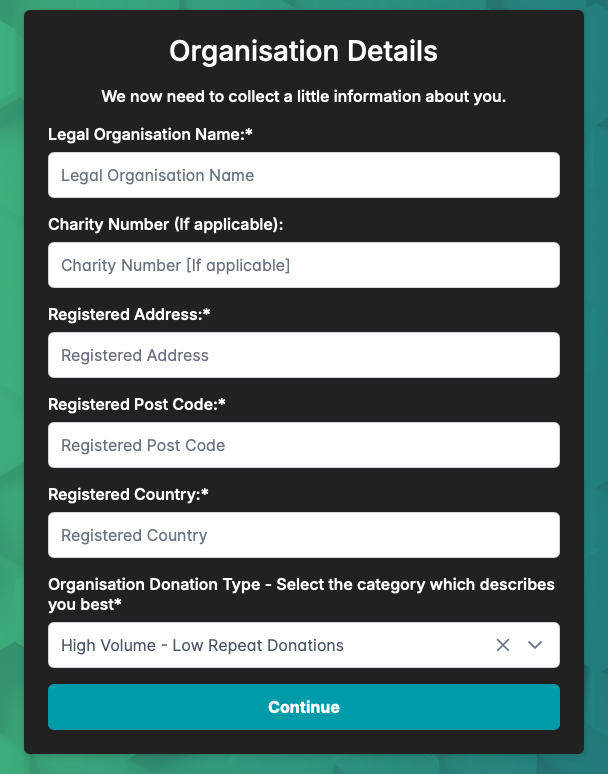
Step 5: Complete the organisation details form. Providing the following details: Legal Organisation Name, Charity Number (If applicable), Registered Address, Registered Post Code, Registered Country and selecting from the drop down menu an option that best describes your organisations donation type.
Step 6: Complete part 2 of the organisations details by providing the organisations website url as well as evidence of charitable activity. Acceptable forms of proof include your organisation's registration number, foundational documents, an auditing model for a non- profit bank account, or a certificate from a recognised authority (for instance, a letter confirming tax exemption) that verifies your status as a charitable entity or trading company.
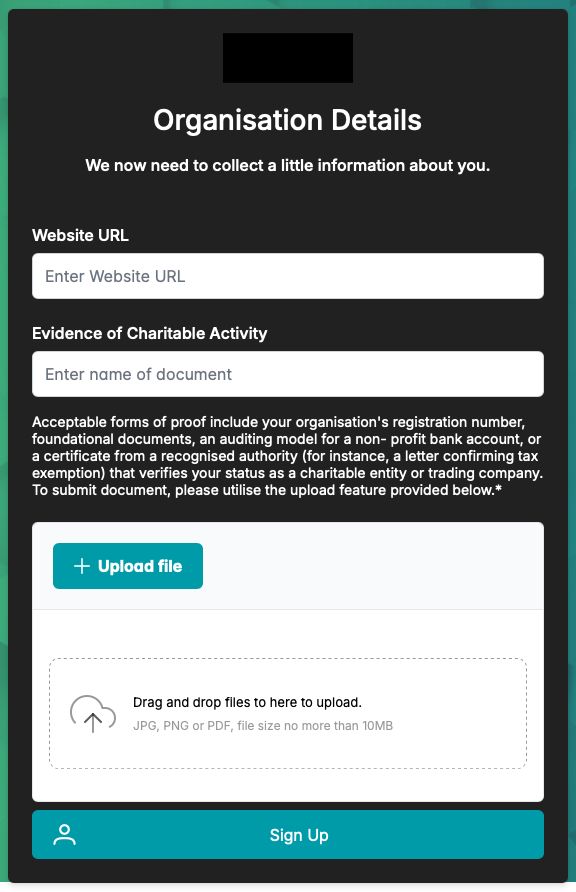
Step 7: Press the big blue button "Sign Up" which will redirect you to payment page to complete the registration.
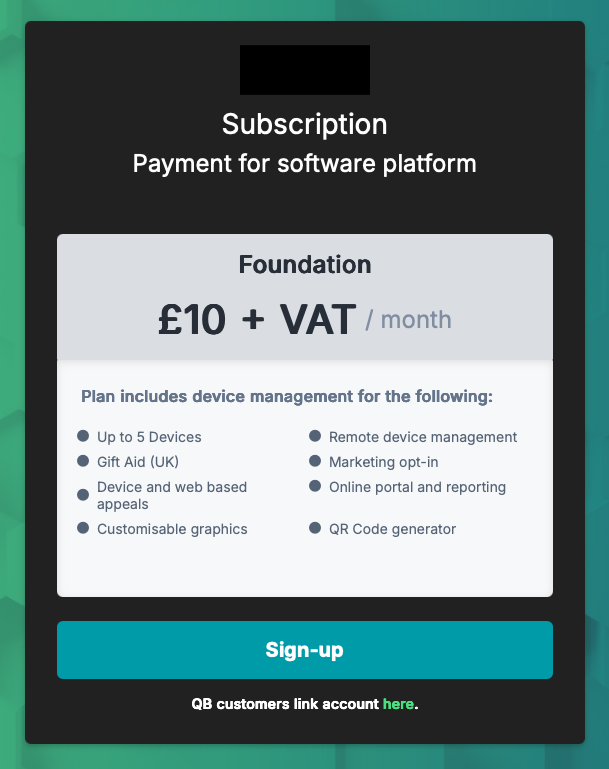
Step 8: Fill in the card details on the card payment page.
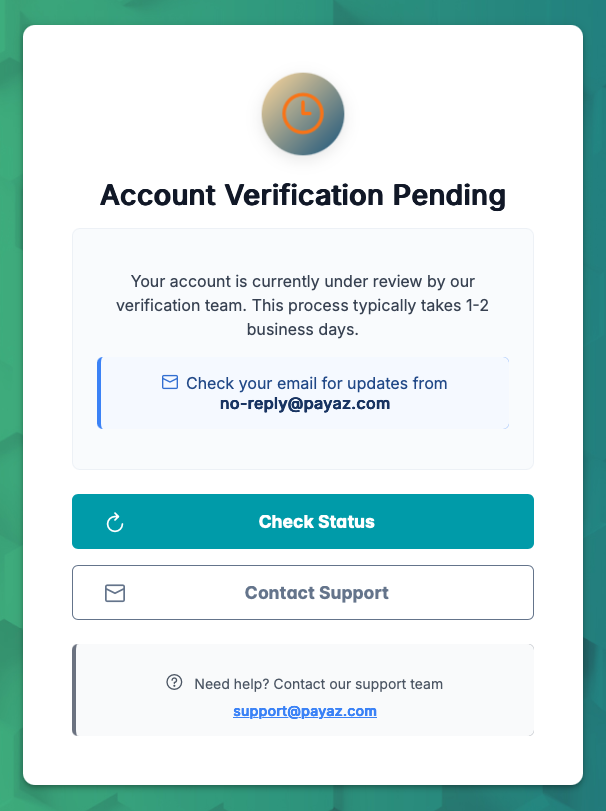
Step 9: Wait for the the Payaz verification team to review and approve the registration (this process typically takes 1-2 business days) Once this is done you will receive and email to the email address used to register the account from no-reply@payaz.com. (If not in inbox check spam or junk).
Was this article helpful?
That’s Great!
Thank you for your feedback
Sorry! We couldn't be helpful
Thank you for your feedback
Feedback sent
We appreciate your effort and will try to fix the article